Google ExcelAutomate.com: excel
Showing posts with label excel. Show all posts

Switch (transpose) columns and rows in Excel

Hi Webies after some gap I'm here with some new articles, Most of the guys are already 
aware of this feature of transpose that is present in Microsoft Excel.

Transposing data is nothing but switching the columns and rows or vice versa.

I am writing this post, because one of my friend got some troubles copying 
and pasting (switching manually). This process will kill your time when you do it 
manually. But excel has built in functionality for  this transposing. 

So here we go...

If data is entered in columns or rows, but you want to rearrange that data into rows or columns instead, you can quickly transpose the data from one to the other.
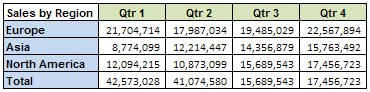
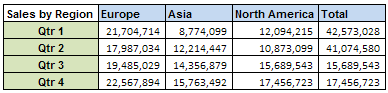
For example, the regional sales data that is organized in columns appears in rows after transposing the data, as shown in the following graphics.
Data in columns
Regional data in rows
  1. On the worksheet, do the following:
    • To rearrange data from columns to rows, select the cells in the columns that contain the data.
    • To rearrange data from rows to columns, select the cells in the rows that contain the data.
  2. On the Home tab, in the Clipboard group, click Copy Button image.
    The Clipboard group on the Home tab
    Keyboard shortcut  To copy the selected data, you can also press CTRL+C.
    NOTE   You can only use the Copy command to rearrange the data. To complete this procedure successfully, do not use the Cut Button image command.
  3. On the worksheet, select the first cell of the destination rows or columns into which you want to rearrange the copied data.
    NOTE   Copy areas and paste areas cannot overlap. Make sure that you select a cell in a paste area that falls outside of the area from which you copied the data.
  4. On the Home tab, in the Clipboard group, click the arrow below Paste, and then click Transpose.
  5. After the data is transposed successfully, you can delete the data in the copy area.
TIP   If the cells that you transpose contain formulas, the formulas are transposed and cell references to data in transposed cells are automatically adjusted. To make sure that formulas continue to refer correctly to data in nontransposed cells, use absolute references in the formulas before you transpose them.


Reference: support.office.com

Excel 2013 - Keyboard shortcuts

Formatiing Shortcuts
Bold                                              CTRL+B
Italic                                              CTRL+I
Underline                                       CTRL+U
Format Box                                   CTRL+1
COPY                                           CTRL+C
PASTE                                          CTRL+V
Paste Only Format                         ALT+E+S+T
Paste Only Formulas                      ALT+E+S+F
Paste Only Values                          ALT+E+S+V
CUT                                              CTRL+X
REPEAT                                        CTRL+Y
Undo                                              CTRL+Z
Delete Cell Contents                       Delete
Delete all Cell Attributes                  ALT+H+E+A
Delete Cell Comment                      ALT+H+E+M
Outline Border                                SHIFT+CTRL+&
Remove Border                              SHIFT+CTRL+_
Insert a comment                            SHIFT+F2

Tab navigation

Move/ Copy a tab                          ALT + H + O + M
Change tab name                           ALT + H + O + R
Moving to left/right tabs                 CTRL + Pg Up/Down
New tab                                        SHIFT + F11
Insert worksheet                            ALT + I + W

Row / column shortcuts

Select column                                CTRL + Space
Select row                                     Shift + Space
Delete row(s) / column(s)               CTRL + 'minus sign'
Add row(s) / column(s)                  CTRL + SHIFT + 'plus sign'
Group / ungroup rows and column  SHIFT + ALT + left / right arrow key
Delete Fit column width                  ALT + H + O + I

Data editing shortcuts

Select All                                         CTRL + A
Fill Down                                         CTRL + D
Fill right                                            CTRL + R
Find                                                 CTRL + F
Replace                                           CTRL + H
Flash Fill                                          CTRL + E
Edit cells                                          F2
Start a formula                                 = (equal sign)
Insert AutoSum formula                   ALT + “+“ (hold down ALT)

Workbook navigation shortcuts Replace 

Toggle Excel workbooks                 CTRL + TAB
Split Screen                                     ALT + W + S (F6 to jump from pane to pane)
Freeze pane                                     ALT + W + F + F
New workbook                               CTRL + N
Print                                                CTRL + P
Open workbook                              CTRL + O (CTRL + F12)
Save workbook                               CTRL + S
Activate menu bar                            ALT or F10
Min / Restore Ribbon                      CTRL + F1
Print preview                                  CTRL F2
Close window                                CTRL + F4
Close program                               ALT + F4

Cell navigation shortcuts
Go to end of contiguous range        CTRL + Arrow keys
Select a cell range                          SHIFT + Arrow keys
Highlight contiguous range              SHIFT + CTRL + Arrow keys
Move to beginning of line               Home
Move to cell                                  “A1”  CTRL + Home
Move to cell above                          SHIFT + ENTER
Move to cell to the right                   TAB
Move to cell to the left                     SHIFT + TAB
Delete cell and get inside                  BACKSPACE
Delete cell/selection                          DELETE
Show formulas/values                       CTRL + ~
Fill selection w/ entry                        CTRL + Enter